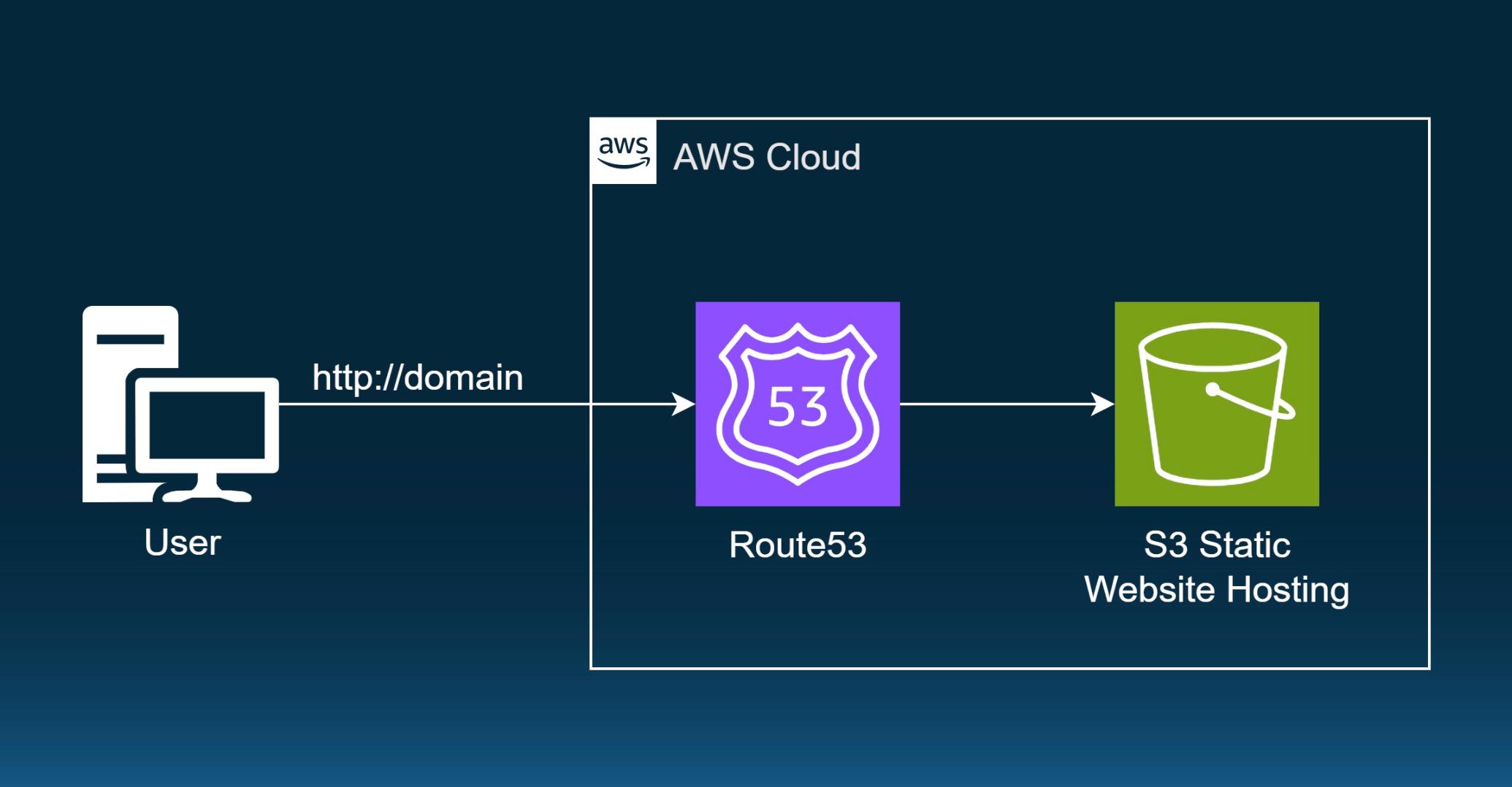
How to Create a static website using Amazon S3
 trungtin tran
Lưu ý
- AWS Region: United States (N. Virginia) us-east-1
1. Creating a S3 bucket
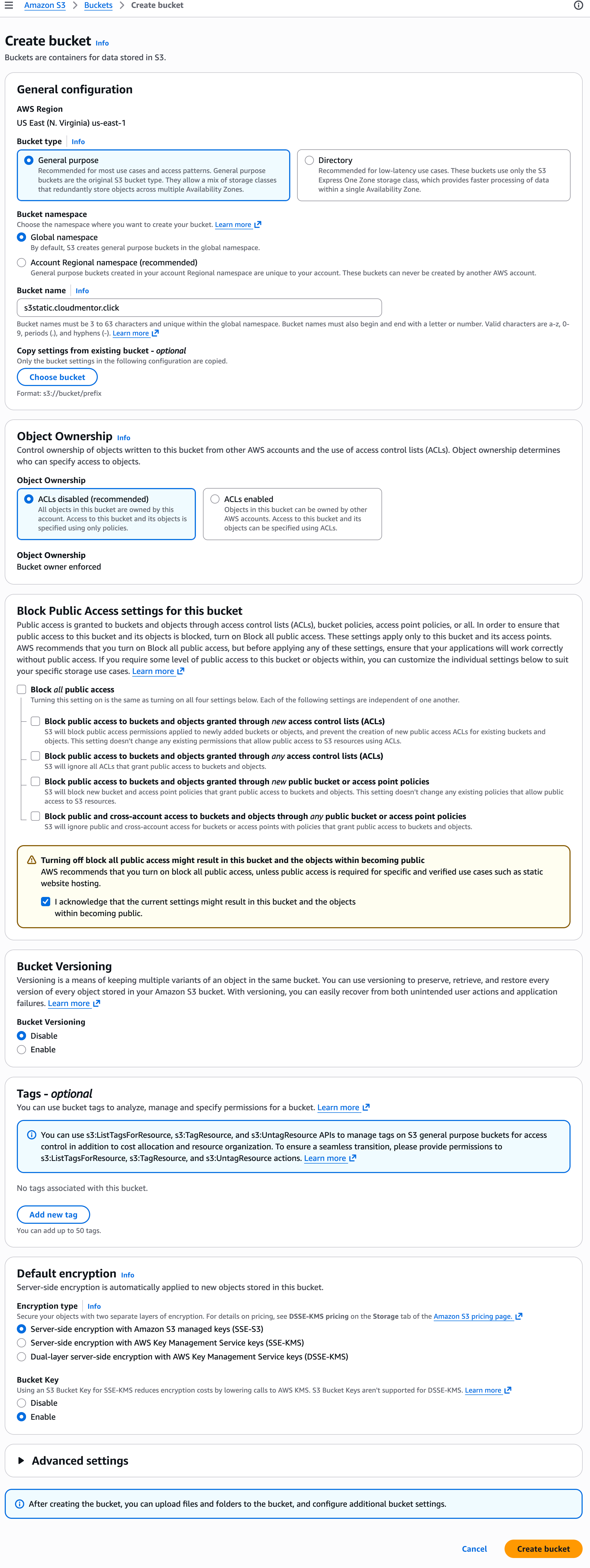
Tại Console S3 -> Create Bucket
- General configuration
- AWS Region:
US East (N. Virginia) us-east-1 - Bucket type:
General purpose - Bucket namespace:
Global namespace - Bucket name:
- Trường hợp đã mua domain ở Route53: đặt bucket name =
s3static.{your-domain}(ví dụ mình đã mua domain làcloudmentor.clicknên mình sẽ đặt bucket name làs3static.cloudmentor.click). Lý do là lát nữa mình sẽ customize domain của web static ở Route 53 - Trường hợp chưa mua domain: đặt với tên bất kỳ, miễn là không trùng với tên bucket nào khác, Ví dụ
d-s3-static-website-{your-name}
- Trường hợp đã mua domain ở Route53: đặt bucket name =
- AWS Region:
- Block Public Access settings for this bucket:
Uncheck - Các settings còn lại để Default
2. Enable Static Website hosting settings
1. Click vào Bucket vừa tạo -> Click Tab Properties.
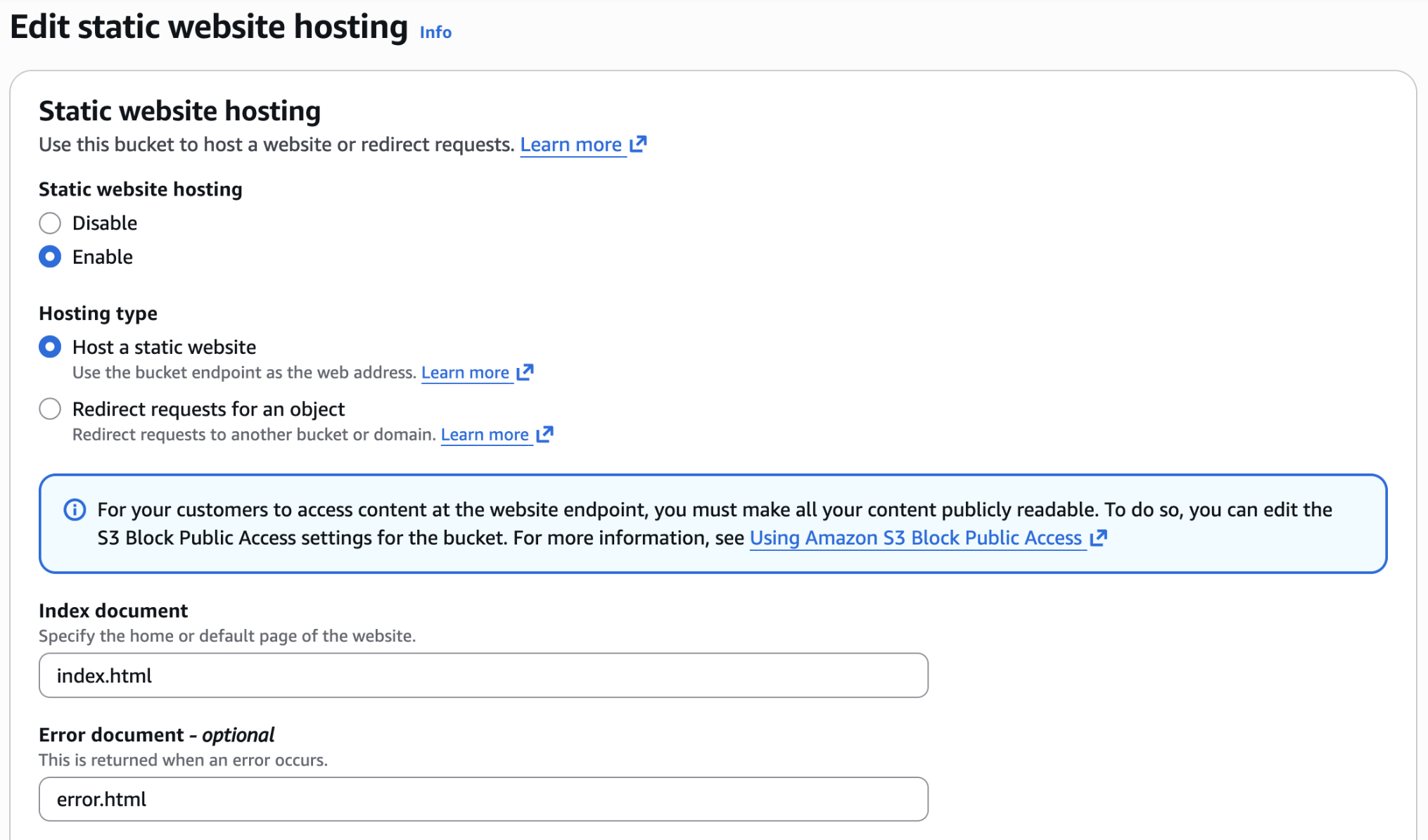
 2. Scroll down to the Static website hosting section and click on Edit button.
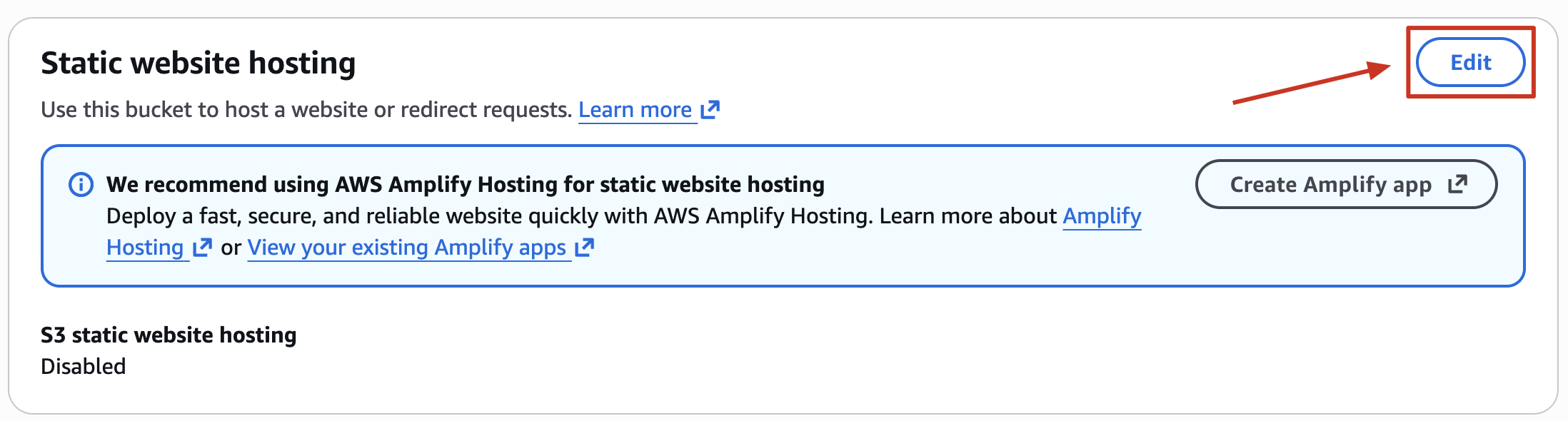
Edit static website hosting
- Static website hosting:
Enable - Hosting type:
Host a static website - Index document:
index.html - Error document:
error.html - Click on Save Changes
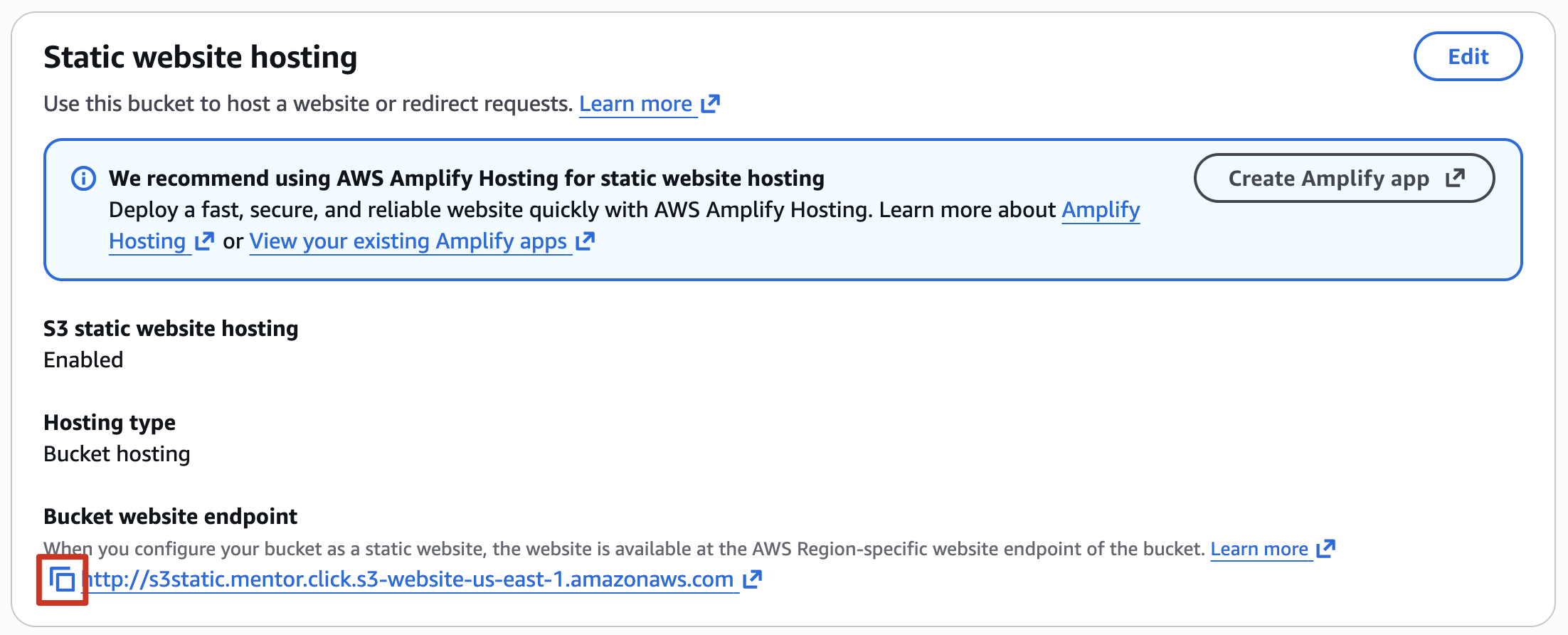
3. Sau khi Save Changes xong thì cũng tại Tab Properties, scroll xuống Static website hosting section. Copy Endpoint và lưu lại để lát sau chúng ta sẽ truy cập.
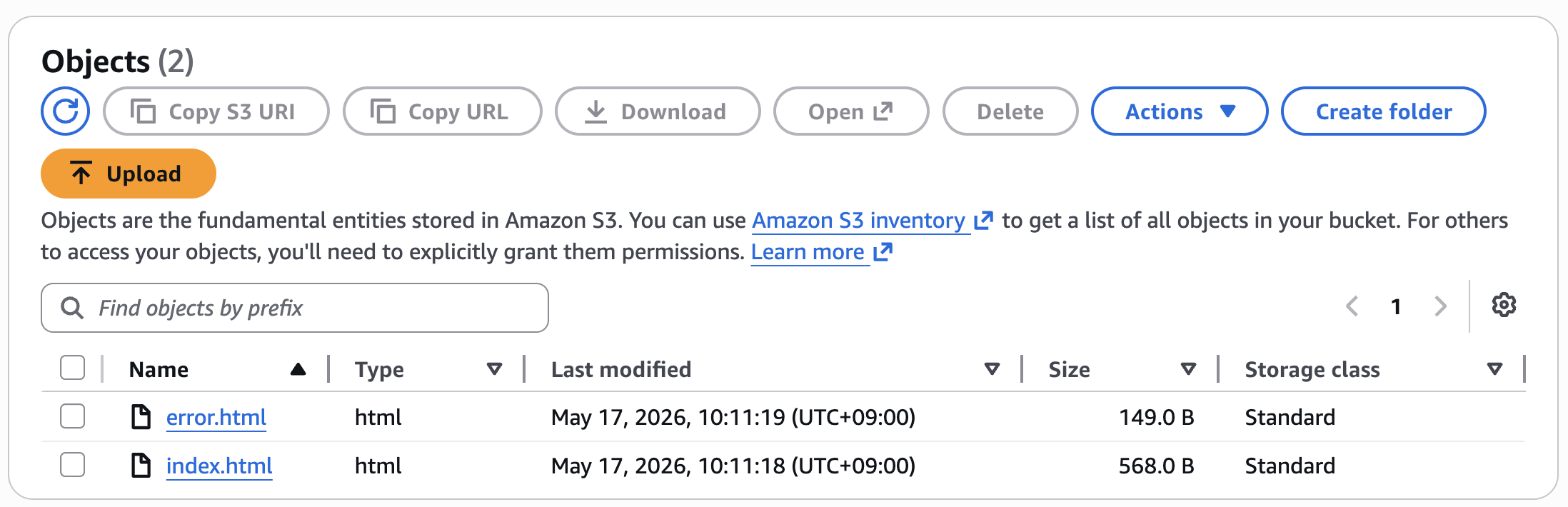
4. Tiếp theo chúng ta sẽ downloads 2 file index.html và error.html được cung cấp tại đây. Upload lên S3 bucket đã tạo trước đó.
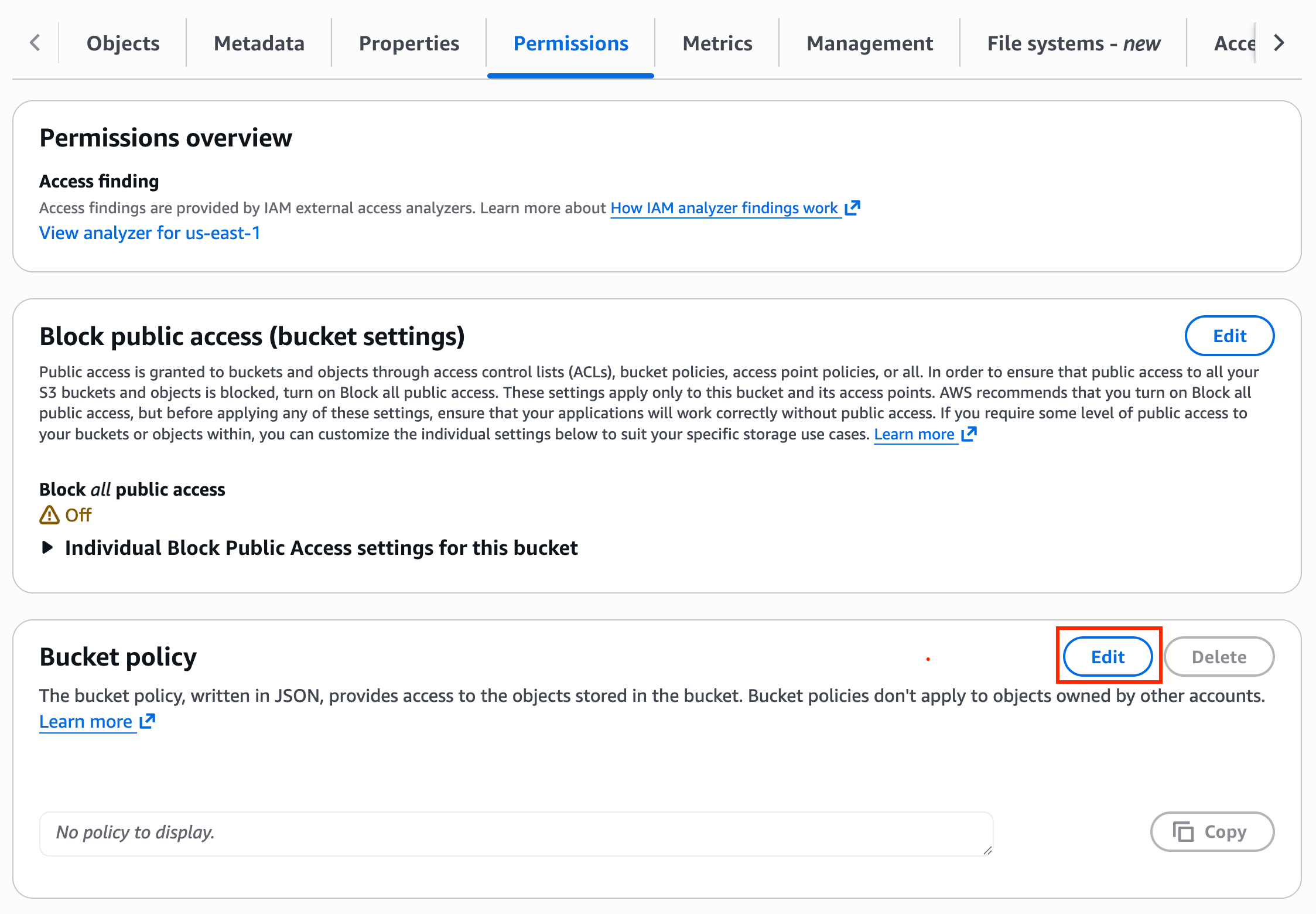
5. Để config quyền truy cập đến S3 bucket, access đến Permissions tab.
Click vào Edit button bên cạnh Bucket Policy.
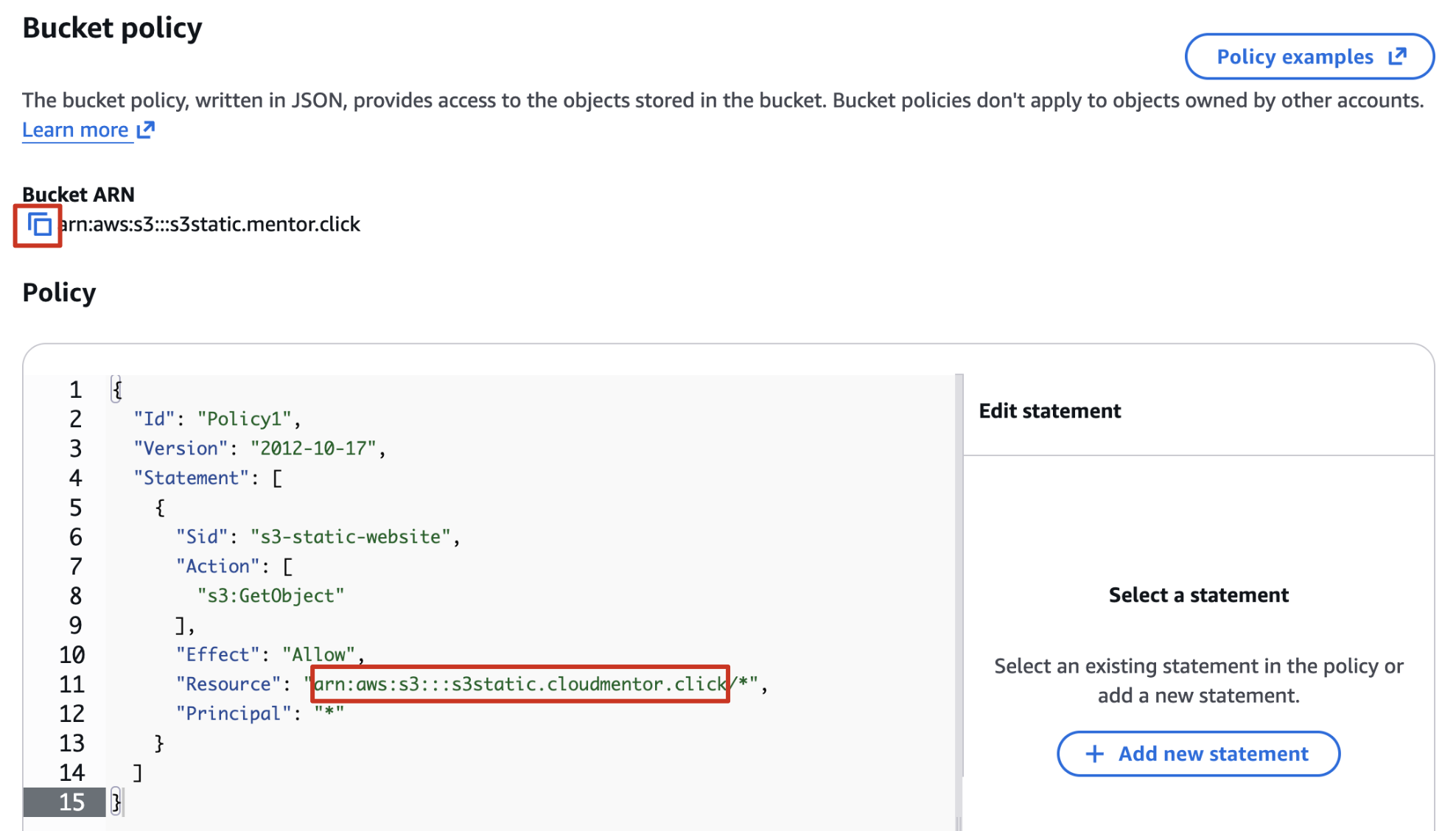
Copy Bucket ARN
Update the bucket ARN chổ Resource, sau đó paste vào editor.
{
  "Id": "Policy1",
  "Version": "2012-10-17",
  "Statement": [
    {
      "Sid": "s3-static-website",
      "Action": [
        "s3:GetObject"
      ],
      "Effect": "Allow",
      "Resource": "replace-this-string-with-your-bucket-arn/*",
      "Principal": "*"
    }
  ]
}
Click on Save changes button.
3. Test the website
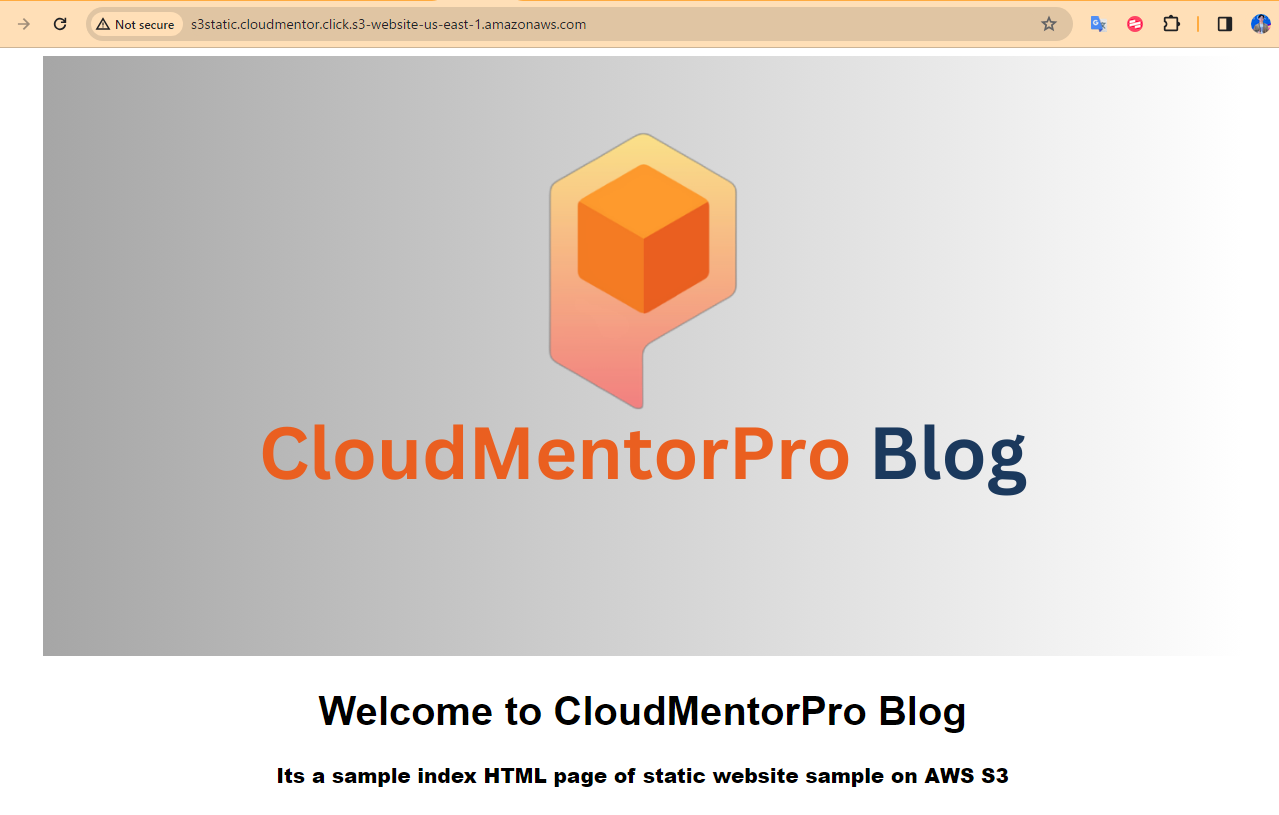
Bây giờ chúng ta có thể sử dụng static website URL (endpoint đã copy lúc nãy). Hoặc vào Bucket, Tab Properties, scroll xuống Static website hosting section sẽ thấy URL.
Truy cập URL trên Browser sẽ thấy xuất hiện nội dung file index.html:
4. Test the website's error page
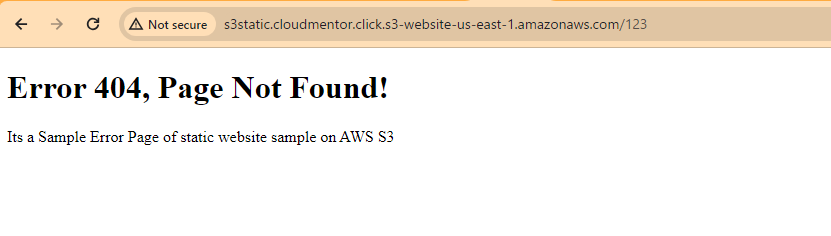
Truy cập URL trên Browser, tuy nhiên lần này chúng ta thêm 1 vài ký tự random vào cuối url: URL + /random-characters.
Chúng ta sẽ thấy nội dung file error.html được hiển thị.
5. Setting Route53 to access http://s3static.{domain} (Optional)
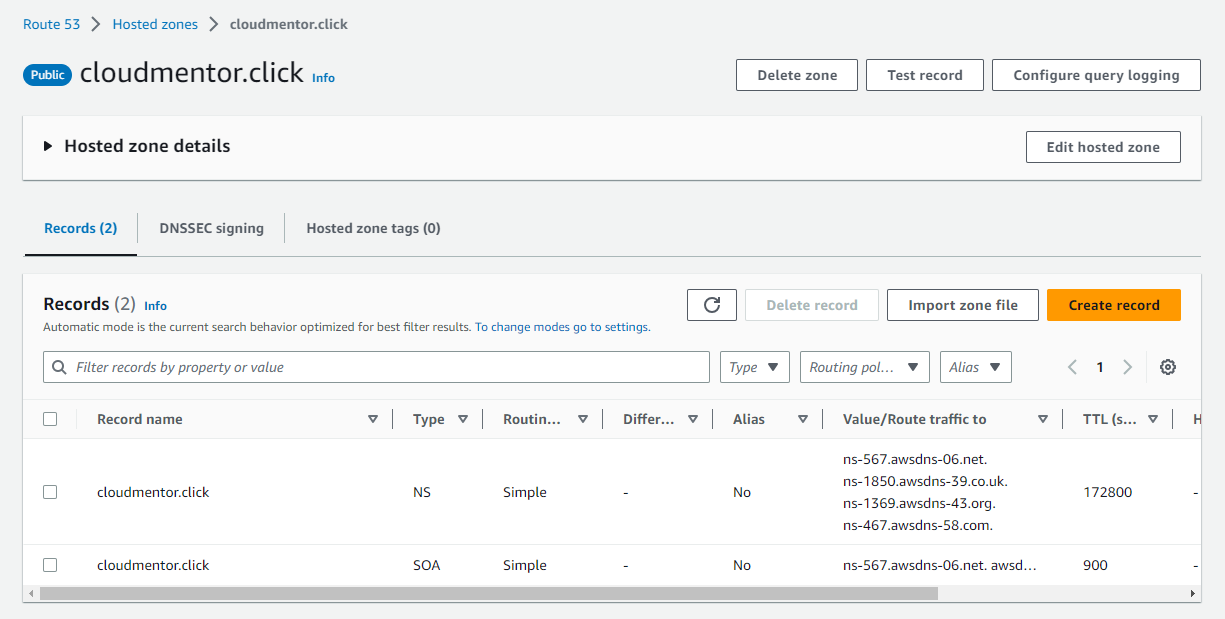
Khi mua domain ở Route 53 thì AWS cũng tạo sẵn cho chúng ta 1 public hosted zone với name là tên domain và có sẵn 2 Record NS và SOA
- Nhấn Create record
- Record name:
s3static - Record type:
A - Alias:
Enable - Route traffic to:
Alias to S3 website endpoint - Region:
us-east-1 - E3 Enpoint:
Chọn endpoint là tên bucket - Create records
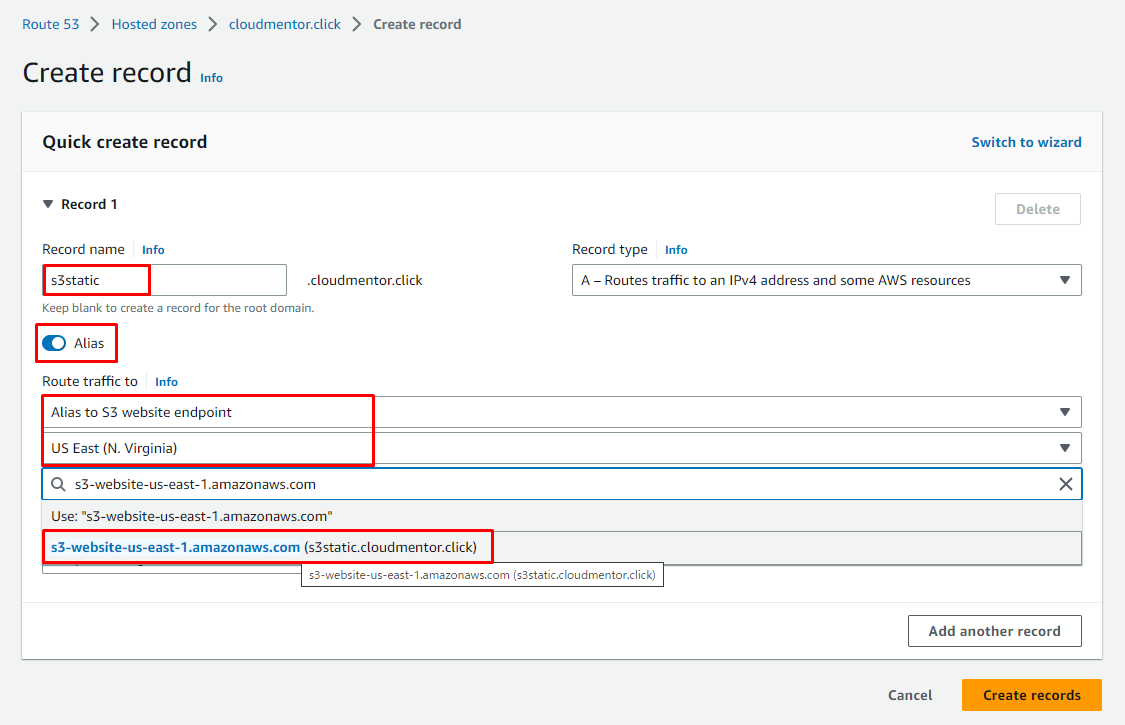
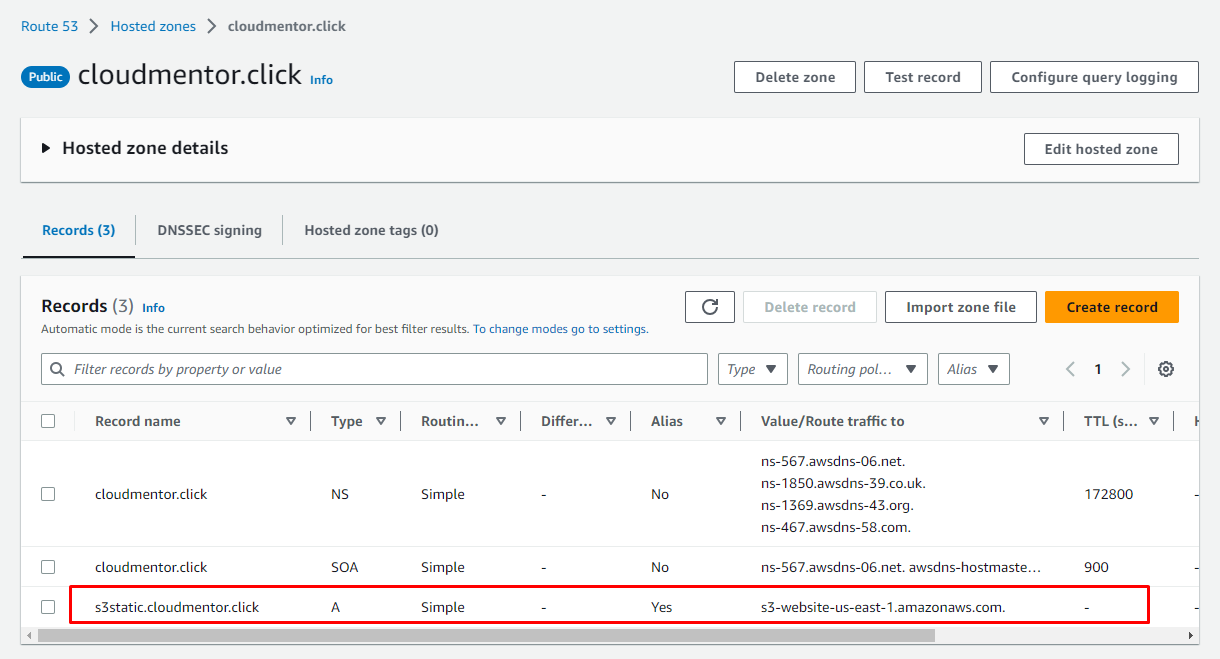
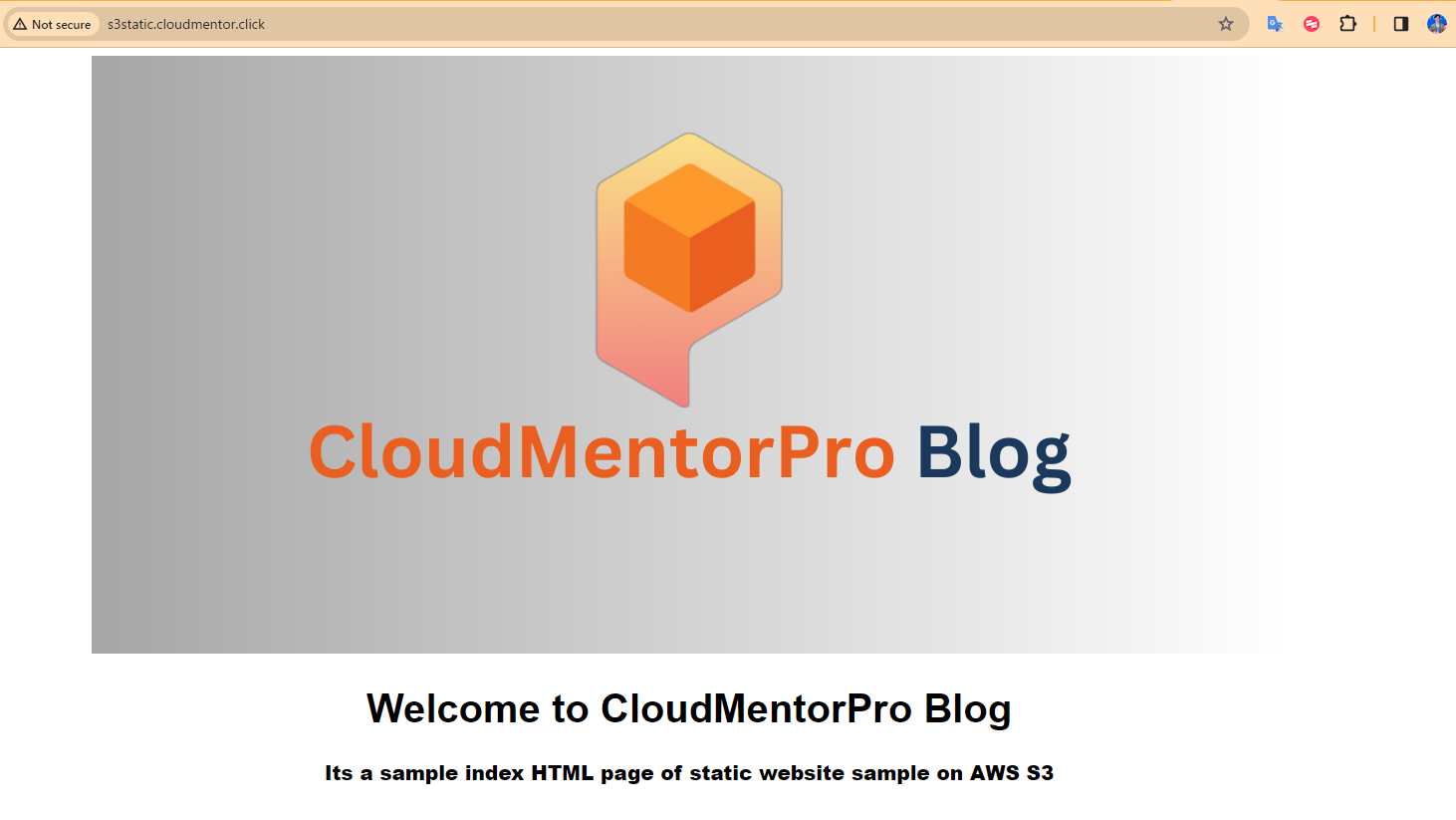
Truy cập vào subdomain vừa tạo: http://s3static.{your-domain}
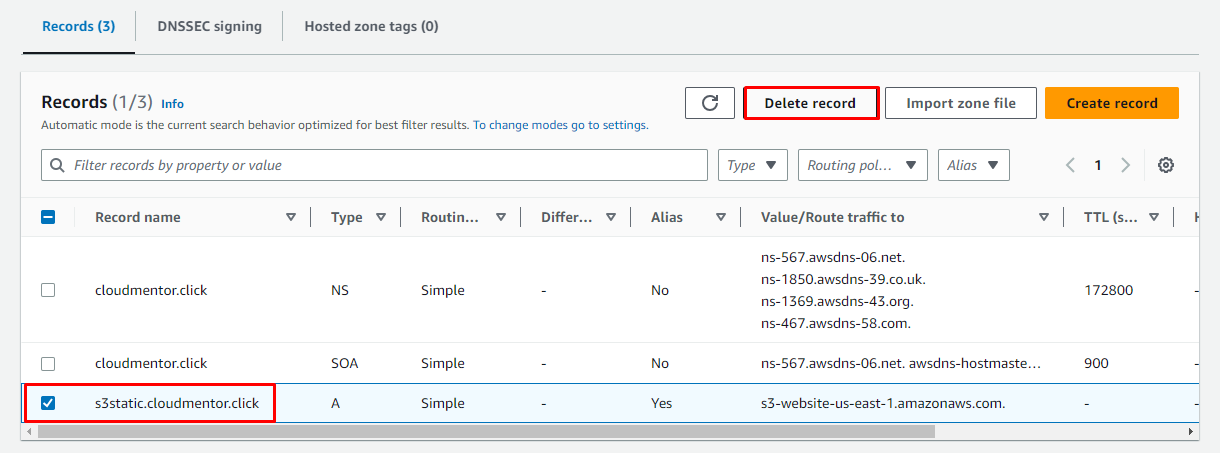
Clean up
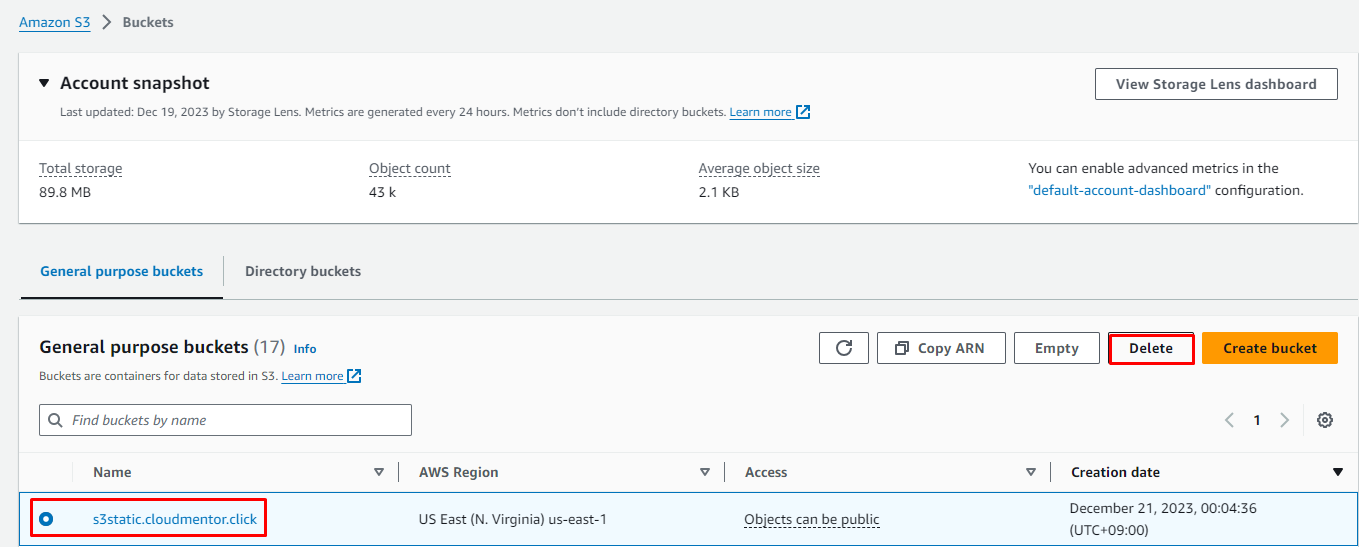
- Delete record vừa tạo ở Route53
- Empty Bucket
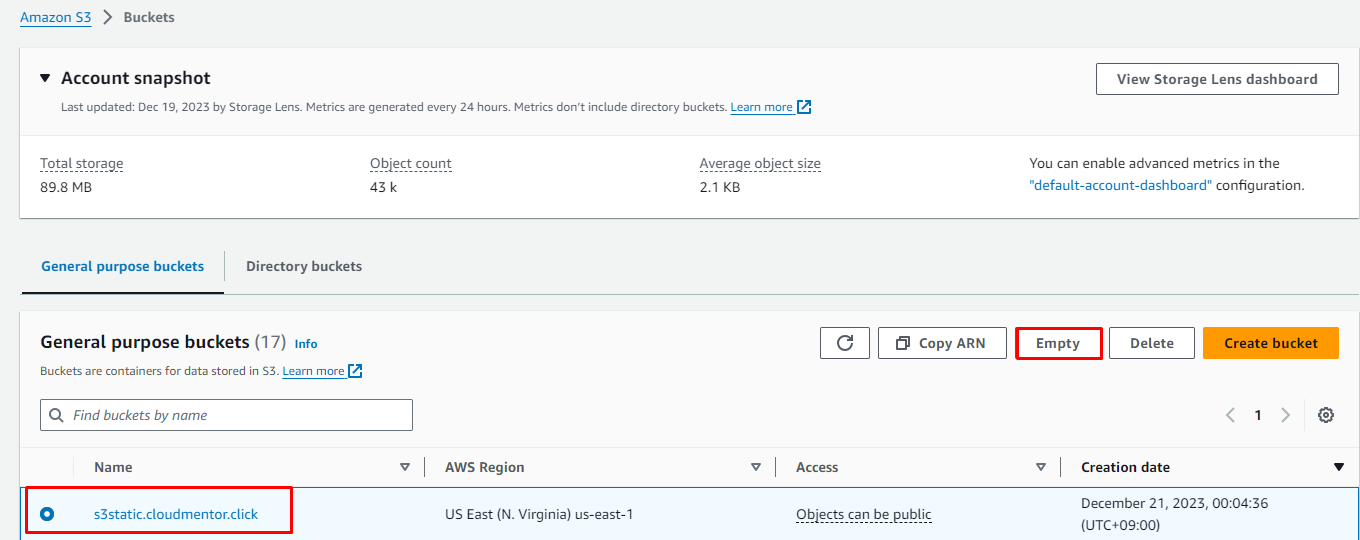
- Delete Bucket